
ICON Marketing Group Snapshot
Visual of your GHL sub-account setup.
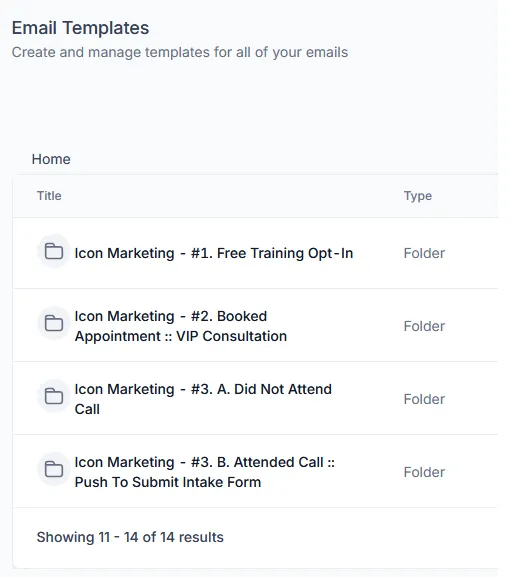
Email Templates Library
This snapshot includes 50+ professionally written email templates designed to support every stage of your customer journey. From initial opt-in and appointment confirmations to follow-ups, no-shows, nurture sequences, and re-engagement campaigns, each template is strategically crafted to increase engagement, build trust, and drive conversions.
All templates are organized into clearly labeled folders for easy navigation and customization. Simply update the branding and specific offer details to align with your business, and you’re ready to launch high-converting communication in minutes.
Key sections inside the sub-account
Use the references below to locate the main functional areas configured by the snapshot. Each subsection includes a short description and a placeholder for a relevant screenshot.
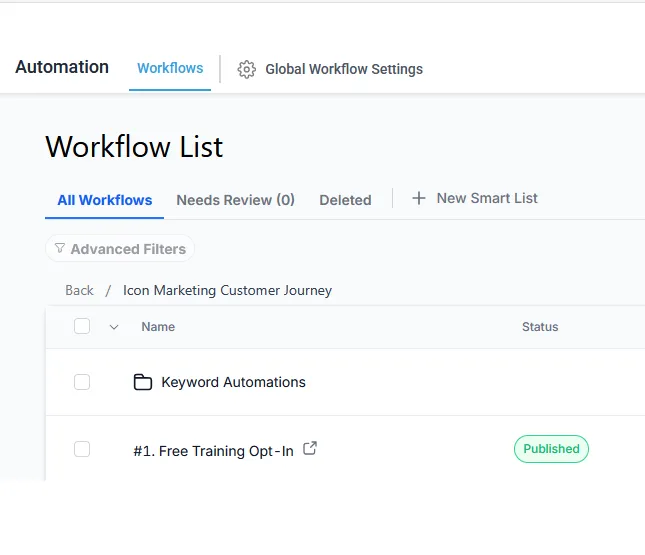
Workflows
All automation sequences are located under Automation → Workflows and power the entire customer journey — including lead follow-up, appointment confirmations, reminders, internal notifications, pipeline updates, and long-term nurture campaigns. Each workflow is pre-built with strategic triggers, timing, and logic to operate as a seamless, conversion-focused system. The snapshot also includes example Social Media Keyword Automations, allowing you to automatically respond to specific keywords from comments or messages to capture and nurture inbound interest.
To protect the integrity of the system, avoid deleting the original snapshot workflows. If changes are needed, duplicate the workflow first and customize the copy so you always retain a clean version of the original automation framework.
Pipelines
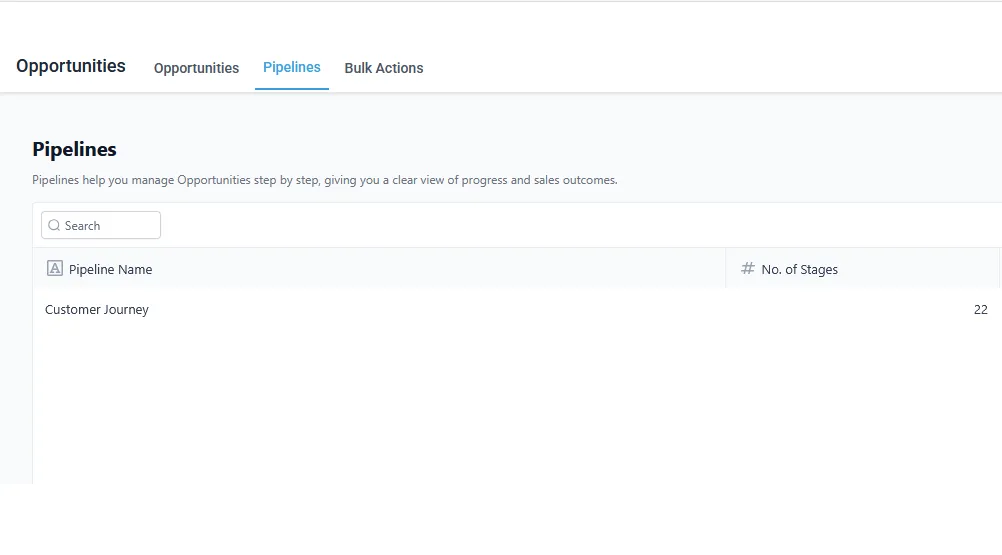
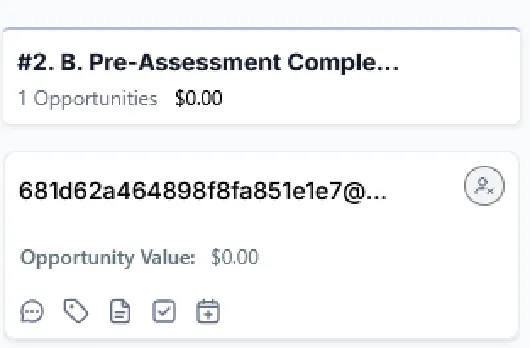
The Pipeline is where you actively manage and move leads through each stage of your customer journey. Located under Opportunities, this view gives you a clear, visual breakdown of where every prospect stands — from new inquiry to booked appointment, follow-up, and closed outcome. As leads take action or respond to your marketing, they are automatically placed into the appropriate stage, allowing you to quickly see what needs attention and what is progressing as expected.
To effectively work your leads, review each stage regularly and move opportunities forward as conversations progress. This ensures accurate tracking, clean reporting, and proper workflow execution tied to specific stages. By consistently managing your pipeline, you maintain visibility over your sales process and create a structured, repeatable path from first contact to conversion.
Calendars
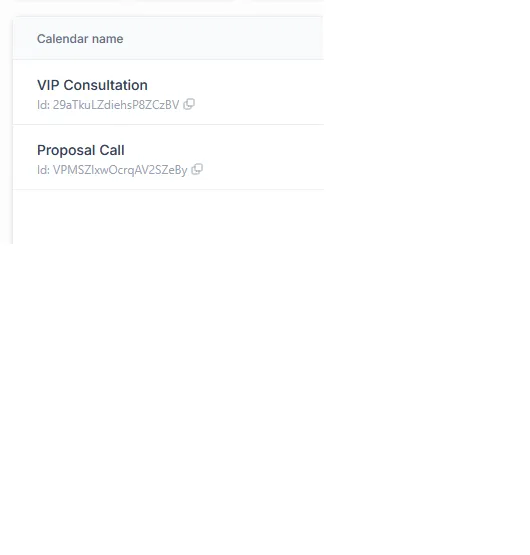
Calendars are located under the Calendars/Appointments section and are used to manage scheduling, availability, and booking links for your offers. They play a critical role in the customer experience by triggering confirmation emails, reminders, follow-ups, and related marketing automations that keep prospects engaged and moving forward.
Availability, time zone, and connected meeting links are all configured here.
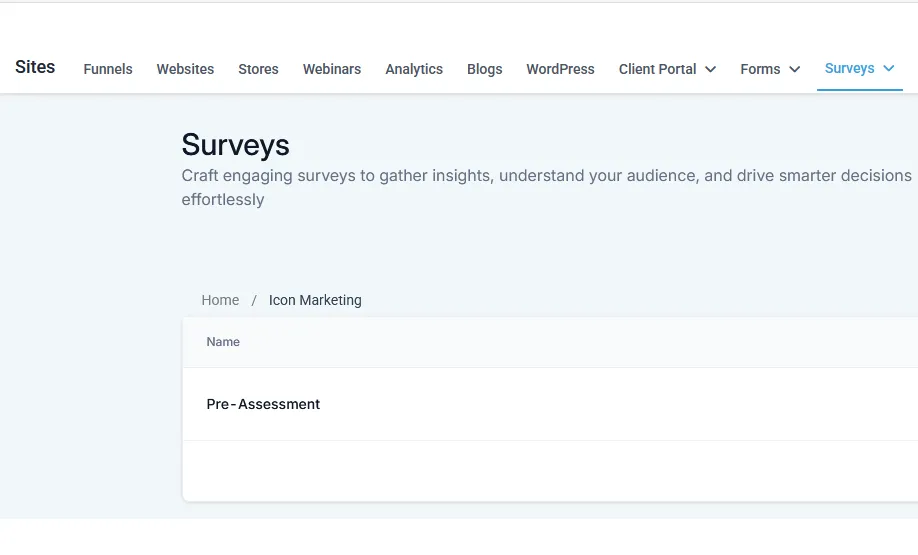
Surveys
Surveys are located under the Sites/Forms section and are used to collect key information before or during the customer journey.
They are often connected to workflows so that submissions create contacts, update fields, and start automation.
Custom Values
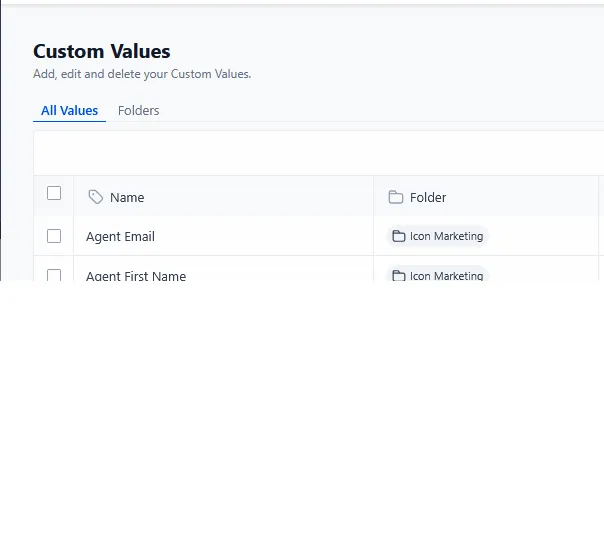
Custom Values allow you to dynamically personalize emails, SMS messages, funnels, and automations by automatically pulling in your business details, branding, and user-specific information throughout the system.
Review these settings to ensure that contact details, sending providers, and URL mappings match your environment.
Initial configuration checklist
Use this checklist as a simple reference when preparing a new sub-account that uses the ICON snapshot. Mark each item as complete in your own documentation as you progress.
Add or confirm business details in the account settings.
Add team members and assign appropriate permissions.
Configure calendar availability and time zone.
Submit a test form to create a sample contact.
Confirm that a test submission triggers the expected workflow.
Verify that test emails and SMS messages are delivered.
Move a test contact through pipeline stages to confirm updates.
Troubleshooting visual references
The notes below describe common areas to review when behaviour in the sub-account does not match expectations. Use them together with your own screenshots of the relevant screens.
Workflows not triggering
Confirm that the workflow is published, that the trigger matches the actual event (such as form submission, tag applied, or pipeline stage change), and that any required filters (status, pipeline, or calendar) are met by the test contact, then send:
"I need support getting my automations to trigger correctly."
Emails not sending
Check that your email service is properly configured under Settings, confirm that your sending domain is verified, and review the workflow step to ensure the correct sender email and template are selected, then send:
"I need help troubleshooting my email delivery inside my workflows."
SMS not delivering
Verify that a valid phone number is assigned to the sub-account, that your A2P Registration is approved, and that the test contact’s number includes the correct mobile number, then send:
"I need assistance correcting my SMS delivery issue."
Contacts not moving in pipeline
Review the workflows responsible for updating opportunity stages, confirm that the correct pipeline and stage names are referenced, and manually move a test contact to check if the automation responds, then send:
"I need help getting my pipeline stages and automations to update properly."
Contact ICON Marketing Group Support
For assistance with setup or troubleshooting, contact us directly on WhatsApp.
ICON Marketing Group
Technical Support Resource
Powered by GoHighLevel